NASA released over 12000 images taken by the Artemis II astronauts but downloading them is a bit tricky. Although you can find them HERE but you have to painstakingly download them one by one. But they do provide TVS files which you can use to download them in bulk but you might have to code your own downloader.
Worry not! I got you covered. I went on a vibe coding-spree and developed an over-engineered downloader for this very purpose. It’s open source so you can compile it on your own computer or modify it but if you don’t want to get into all that, you can simply download the executable file.
Disclaimer
This software is no way or form associated with NASA. It is developed independently to be used for educational purposes. I can’t provide any support for this program nor can I provide any warranty. It is as is and you can use it at your own risk. It works for me and that is all I can say.
Features
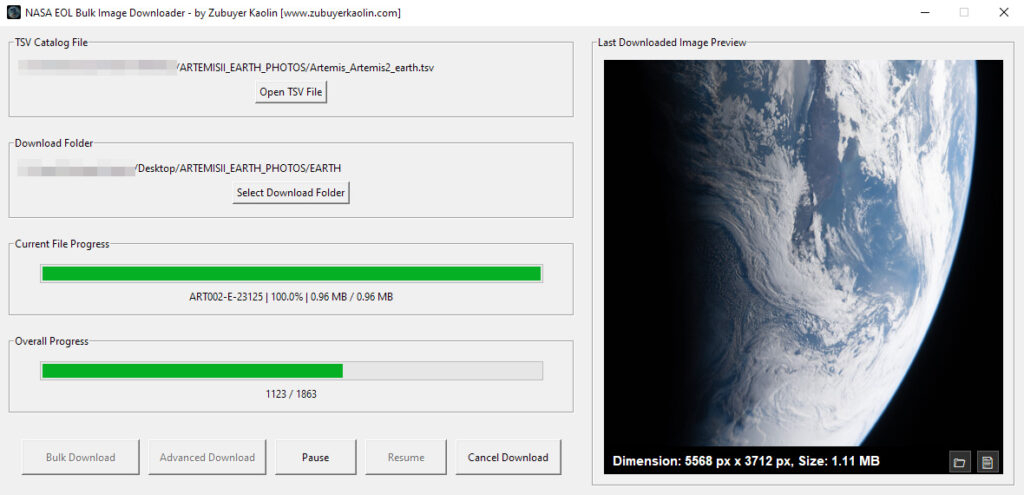
- Reads TVS files and downloads all assets into a folder of your choosing.
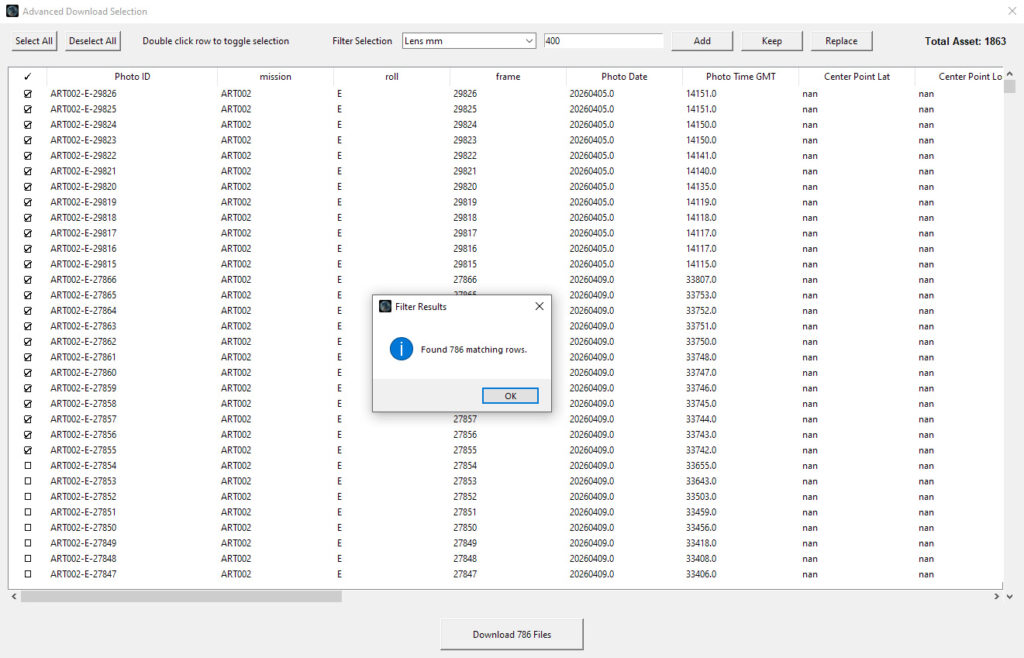
- Comprehensive Advanced Download option where you can filter which assets you want to download based on their metadata.
- Preview the images as you download them so it’s not a boring experience.
- It’s open source, so do whatever you want with it as long as you respect the license.
- It gets the job done which is the most important thing!
System Requirements
- Windows 10+
- Core i5 CPU
- 8GB+ or more RAM
- Python 3.1+ if you want to compile the code yourself
- Internet connection
- 17 GB free drive space for downloading the full data set
What’s Included
- Executable portable EXE file that doesn’t need any installation. Just download and use.
- Python source code and build instructions.
- 3 TVS file for the Artemis II mission photos.
How to use it
Step 1: Download the files from the link below. You can find the EXE file in the “dist” folder. Run it or if you have python, run the main.py file from the “source” folder.
Step 2: Load the TVS file of your choosing either by downloading them from HERE or from the NASA_TSV_FILES folder.
Step 3: Select the destination download folder.
Step 4: Click “Bulk Download” button to start downloading everything in the list, or click “Advanced Download” to choose the assets you want to download from the list. You have filtering options to narrow your search. For example, you can chose Photo Date from the filter list, enter your desired date (date needs to match the format in the TSV list) and click add to only select photos from that particular date. Then, you can select Lens mm from the filter list and enter the focal length (i.e. 400 or 24 or 35) and click Keep to only keep selection from previously selected assets that were captured using that particular focal length.
Step 5: Enjoy!
Click the button below to download the application and source code.
If you find this useful or have any trouble using it, leave me a comment or share this article on your socials. If you want to support my work, feel free to browse my shop.


Leave a Reply